MacBook Pro Setup
This guide takes you from a brand-new MacBook to a working Intealth development machine. Work through it top to bottom — later steps depend on earlier ones.
Before your start date
- Complete Create Accounts
- Install Okta Verify and Microsoft Teams on your mobile phone
- Okta URL: https://ecfmg.okta.com
On your start date
We perform these steps together as a team. Do not perform steps out of order or on your own.
Wait until you're on a Teams call with the Connected Apps team before starting. Message Seven Thomas (or Patrick Gidich if unavailable) on Teams when you're ready.
General notes
- Be patient. Some parts are tedious, but a consistent setup across the team saves everyone time later.
- You'll receive your username and temporary password on your start date.
Who to contact
If you run into issues, contact Seven or Patrick first. They may direct you to the Help Desk.
| Contact | Phone | |
|---|---|---|
| Seven Thomas | 980-259-3376 | sthomas@ecfmg.org |
| Patrick Gidich | 484-431-4487 | pgidich@intealth.org |
| Intealth Help Desk | 215-823-2163 | servicedesk@intealth.org |
Register for password reset
Do this from your personal laptop (or a private/incognito browser window).
- Open Register to Reset Password (Microsoft Support).
- Sign in. Your username is your full email address, e.g.
jdoe@intealth.org. - Add Phone as a secondary verification method (recommended).
If you ever need to reset your password later, go to passwordreset.microsoftonline.com.
Password requirements
Passwords cannot be changed more than once in a single day, and must be changed every 6 months.
- At least 12 characters, containing letters and numbers
- Cannot contain
*or start with a number - No common words, known-breached passwords, or variations of "password"
| Rule | ❌ Not acceptable | ✅ Acceptable |
|---|---|---|
| Must differ in characters and words from previous passwords | Old Password123 → New Password12345 | Old OrionStar → New LemonTrain |
| No character sequences or repetitions | Password12345, PasswordAAAA | $n0wC@ctu$ |
| No words related to the Enterprise or to you personally | ECFMGstarEmployee, FredWilmaPebbles979902, 123MainSt, SpotTheDog, PhillyPhanatic13 | CabinFishFood |
| No common passwords | p@ssword, password123 | — |
Step 1 · Start up and sign in
1.1 Initial macOS setup
-
Plug the MacBook into power.
-
Start up the MacBook and choose the following:
Screen Choice Language English Region United States Transfer Your Data to This Mac Set up as new Accessibility Not Now Wi-Fi Your Wi-Fi network Data & Privacy Continue -
Create your computer account:
- Full Name: first + last name
- Account Name: first name (this becomes your username)
- Password: generate one with 1Password
-
Sign in with your personal Apple ID, enter the verification code, and accept the Terms & Conditions.
-
You may be shown the following screens:
- iCloud Keychain — choose Set Up Later
- Make This Your New Mac (if shown) — click Continue, then:
- FileVault Disk Encryption: keep Turn on FileVault checked
- Allow my iCloud account to unlock my disk: keep checked, then click Continue
- Touch ID: set it up now
- Apple Pay: continue without setting up
- Choose Your Look — light or dark, your choice
1.2 Install software updates
- Press ⌘ + Space, type System Settings, and press Return.
- Go to General → Software Update and click Update Now.
1.3 Add your Apple ID (if you skipped it)
If you skipped Apple ID sign-in earlier, open System Settings and choose Sign in with Apple ID using your personal Apple ID.
Step 2 · Partition drive and create folders
Your code lives on a dedicated volume named files.
2.1 Create the volume
- Press ⌘ + Space, type Disk Utility, and press Return.
- Click + in the toolbar to add a new volume:
- Name:
files - Format:
APFS
- Name:
2.2 Create the base folder structure
-
Open Finder, press ⌘ + Shift + G, type
/Volumes/files, and press Return. -
Press ⌘ + Shift + N to create each folder:
/Volumes/files/Volumes/files├── applications # where you'd install MuleSoft├── cloud-files # where you'll mount OneDrive├── src # where your code goes└── vm-images # where Parallels VMs would go -
Drag the
srcfolder into Favorites in the Finder sidebar. -
In the menu bar, go to Finder → Settings → Sidebar and make sure Hard Disks is checked under Locations.
Step 3 · Install Chrome, 1Password, Office, and Teams
3.1 Google Chrome
In Safari, go to google.com/chrome and install Chrome.
Safari is a good browser on a Mac, but Chrome's DevTools are excellent for development. Edge is also worth a try.
3.2 Password manager
If you use 1Password, have your master key ready.
- Desktop app: 1password.com/downloads/mac
- Browser extension: 1password.com/downloads/browser-extension
3.3 Microsoft Office
- Sign in at portal.office.com/account with your Intealth/ECFMG credentials and install Office.
- When prompted, choose to install for all users.
- When prompted to mount OneDrive, mount it to
/Volumes/files/cloud-files. - Configure Outlook (⌘ + , opens Settings):
-
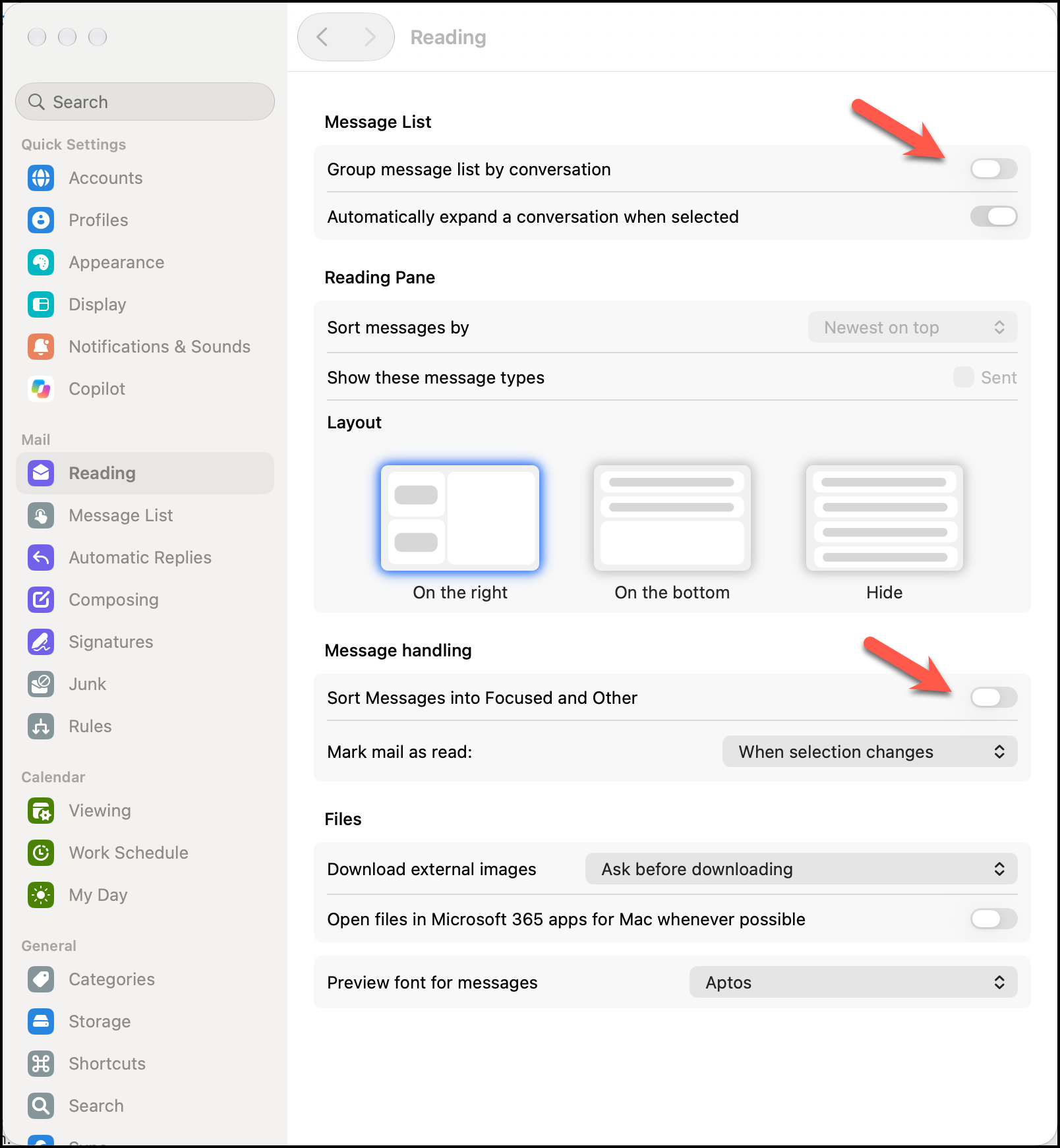
Turn off Focused Inbox — uncheck the items shown below:
-
(Optional) Set Density to Compact under General.
-
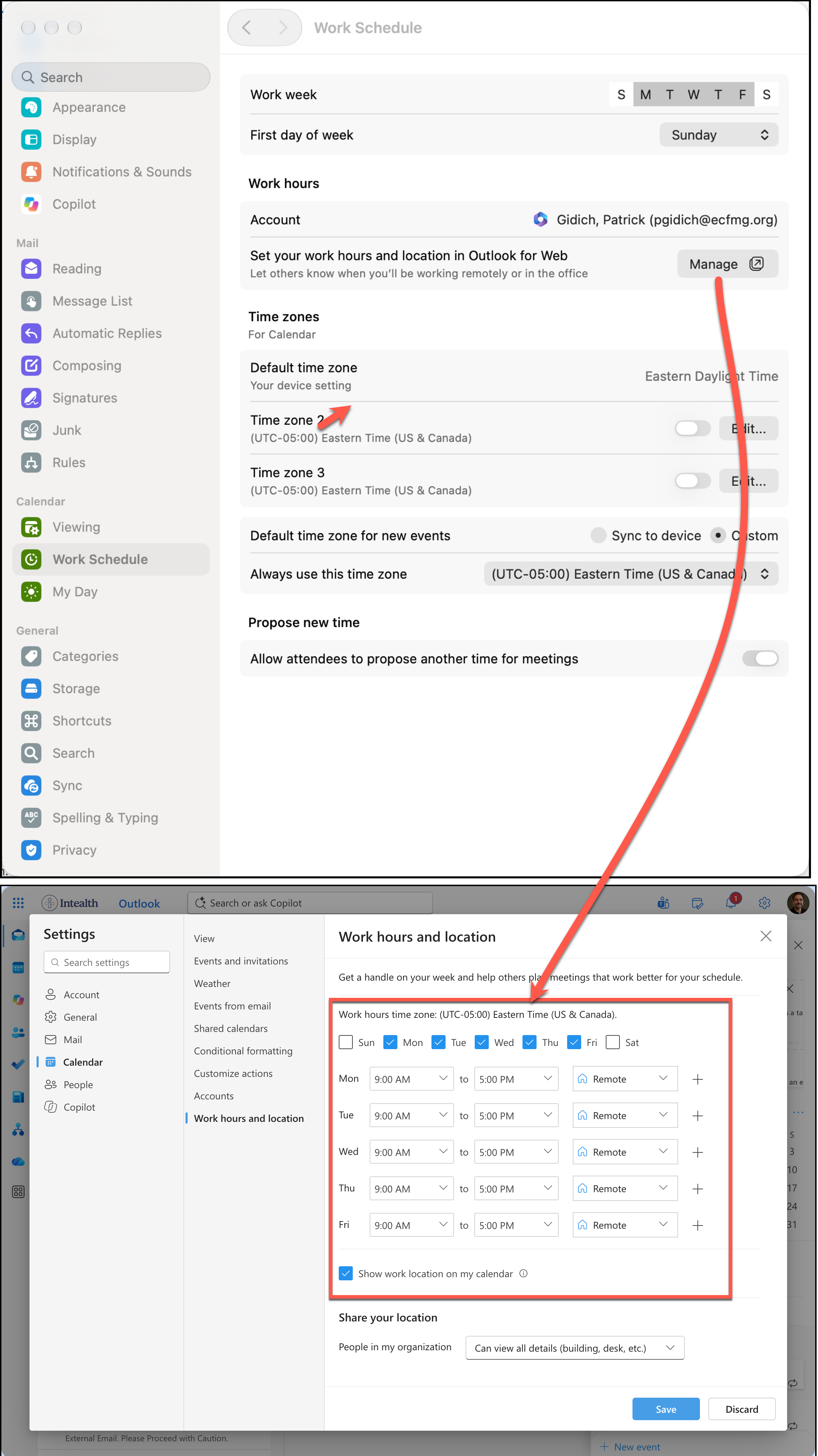
Set your working hours to match your normal schedule (7 hours + 1 hour lunch):
-
3.4 Microsoft Teams
Skip this if Teams was installed with Office. Otherwise, download it from microsoft.com/microsoft-teams/download-app.
Troubleshooting: Teams install went sideways
Only do this if the normal install fails.
sudo pkgutil --forget com.microsoft.teams
rm -r ~/Library/Application\ Support/Microsoft/Teams
Then install the daily build of Teams (raw.githubusercontent.com/ltzLevvie/MicrosoftTeams-msinternal/master/defconfig) and reinstall Teams.
3.5 Say hello
Post your GitHub handle in the CXA Team group chat in Teams.
Step 4 · Git, runtimes, and Java
4.1 Apple Command Line Tools (installs Git)
-
Open Terminal (⌘ + Space → Terminal) and run the command below. This takes a while.
Terminalxcode-select --install -
When prompted, install the command line tools.
-
Check for and install any updates:
Terminalsoftwareupdate --listsoftwareupdate --install --all -
Open System Settings → Software Update and confirm the command line tools are up to date.
4.2 GitHub SSH keys
Follow GitHub's guide very carefully: Generating a new SSH key and adding it to the ssh-agent. Your macOS version is newer than 10.12.
- Do add a passphrase when generating the key.
- Do not follow the "Generating a new SSH key for a hardware security key" section.
Azure DevOps + GitHub (skip unless directed)
- Follow the GitHub instructions above.
- Add a second SSH key using the RSA method and add it to your keychain (don't use the
.pubextension). - Edit your SSH config using hostname
github.comfor GitHub and, if instructed,dev.azure.comfor Azure DevOps (leave off the.pubextension). - Use
pbcopyto copy the.pubkey and paste it into your Azure credentials. Azure doesn't support the newer SSH key type that GitHub requires.
4.3 Link your Intealth email to GitHub
Add and verify your @intealth.org email at github.com/settings/emails.
You can add your corporate email to your personal GitHub account — it becomes a blended account.
4.4 Configure your Git identity
Replace the name and email with your own. The email must be a verified email on your GitHub account (personal or @intealth.org).
git config --global user.name "John Doe"
git config --global user.email johndoe@example.com
4.5 Homebrew and mise
-
Install Homebrew. It will ask for your machine password.
Don't skip the final stepWhen Homebrew finishes, it prints 3 commands to copy and paste into Terminal. Run them, or
brewwon't be on your PATH. -
Open a new Terminal window and install mise:
Terminalbrew update && brew install mise -
Activate mise in your shell:
Terminaltouch ~/.zshrcecho 'eval "$(mise activate zsh)"' >> ~/.zshrcsource ~/.zshrc
If mise reports that it doesn't have permission, run mise trust.
Fallback: install Node with NVM (skip unless mise has issues)
-
In Terminal, make sure your shell profile exists:
Terminaltouch ~/.zshrc -
Run the install script from nvm-sh/nvm.
-
Quit and restart Terminal.
-
Install the latest Node version supported by Azure Functions:
Terminalnvm install v22
4.6 .NET Runtime (macOS ARM64)
-
Go to dotnet.microsoft.com/download/dotnet and pick the version marked (latest) / Long Term Support.
-
Under .NET Runtime, choose macOS → Arm64 → Installer.
-
Run the installer, then reboot.
-
Confirm the install in a new Terminal window:
Terminaldotnet --list-runtimes
4.7 Java (Temurin JRE)
-
Go to adoptium.net/temurin/releases — Adoptium is the free, open-source Java distribution.
-
Select:
Option Value Operating System macOS Architecture aarch64 Package Type JRE (runtime only — you don't need the JDK) Version Leave the default -
Download the .pkg (about 56 MB), run it, then reboot.
-
Confirm the install:
Terminaljava --version
Step 5 · VS Code and Azure tools
5.1 Azure Functions Core Tools v4
brew tap azure/functions
brew install azure-functions-core-tools@4
5.2 Visual Studio Code
Download VS Code from code.visualstudio.com/download.
Choose Apple Silicon (zip), not Intel. Unzip it and move the app into Applications.
5.3 Azure CLI
brew update && brew install azure-cli
5.4 Launch VS Code
Open VS Code to confirm it runs, then continue to the next step.
Step 6 · VS Code extensions
Install each extension below.
| # | Extension | Notes |
|---|---|---|
| 1 | GitHub Copilot Chat | Usually preinstalled |
| 2 | GitHub Pull Requests | |
| 3 | Azure Tools | |
| 4 | SonarQube for IDE | Trust the publisher, then configure it |
| 5 | Apollo GraphQL | |
| 6 | Azurite | |
| 7 | GitLens | |
| 8 | Vitest Explorer | |
| 9 | Sourcery | Log in with GitHub |
| 10 | Python |
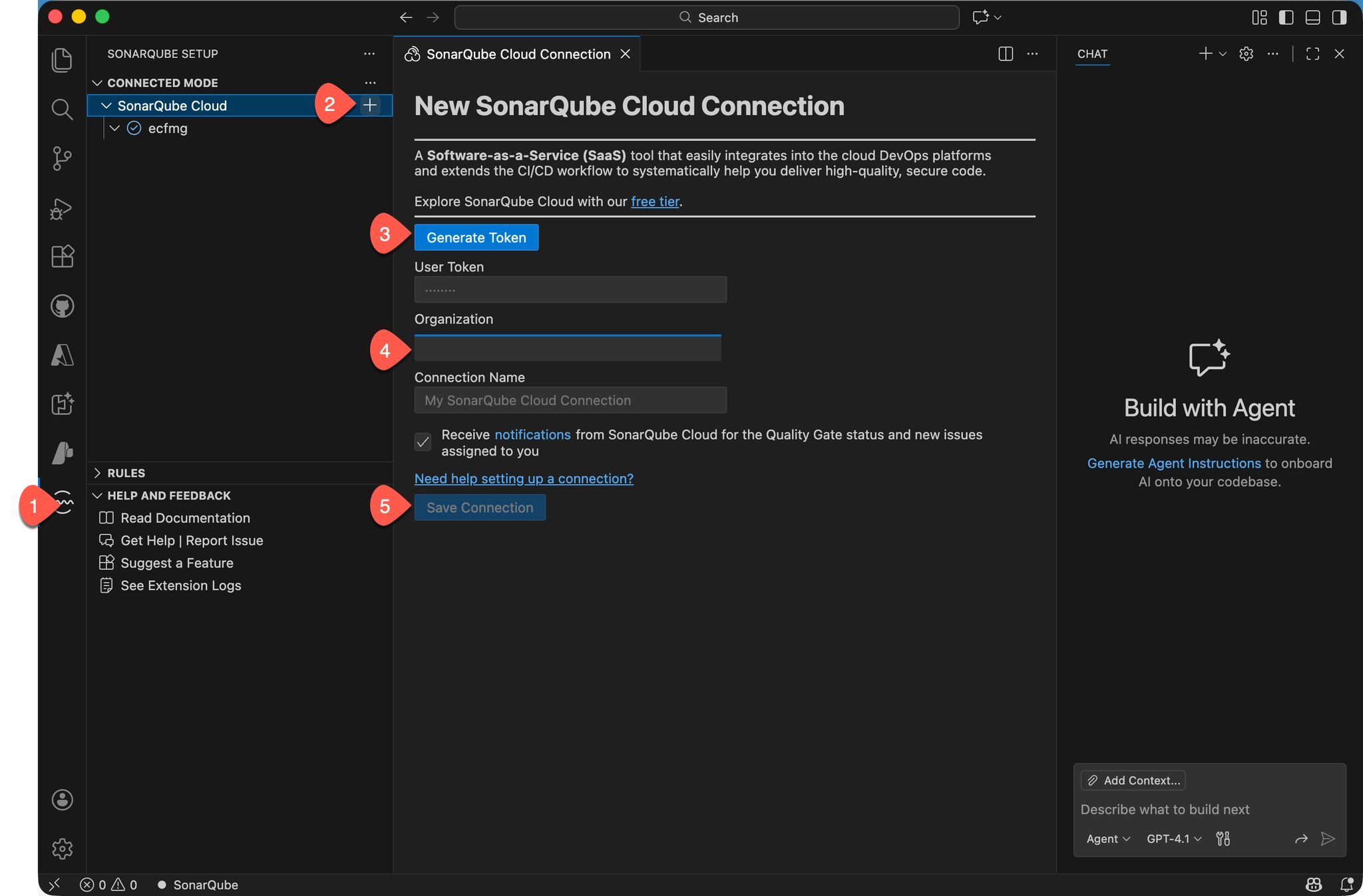
6.1 Configure SonarQube
-
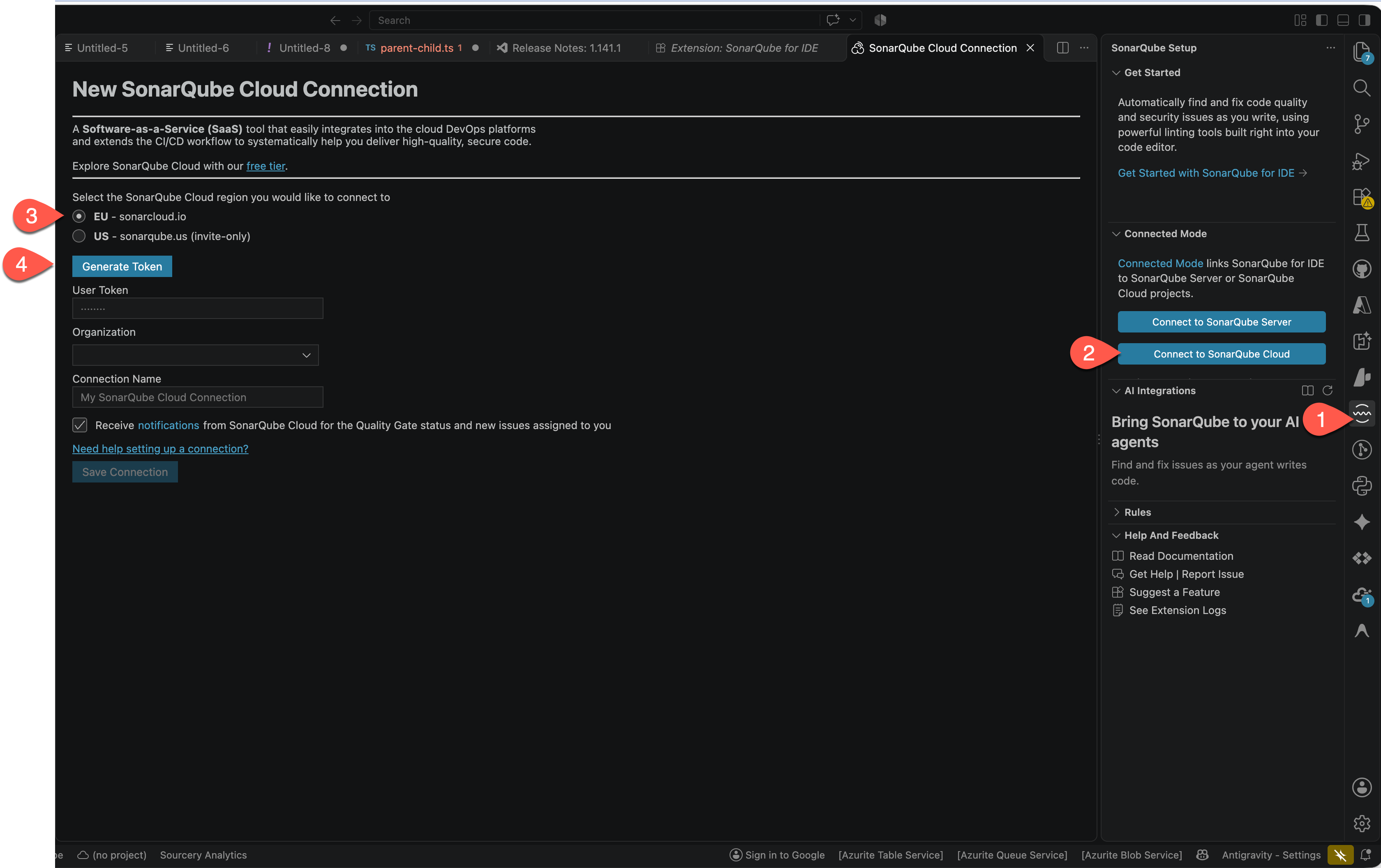
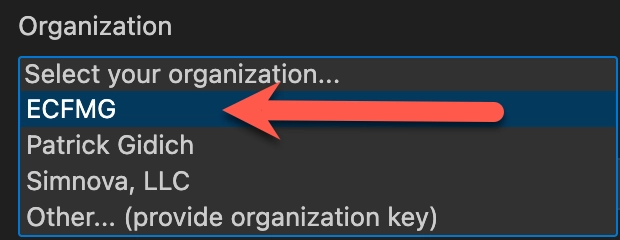
Add the organization key in SonarQube Cloud settings for organization ECFMG:
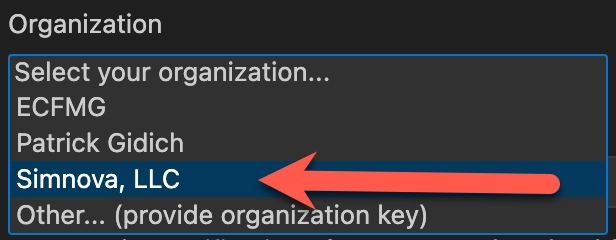
-
Add the organization key in SonarQube Cloud for organization Simnova, LLC:
-
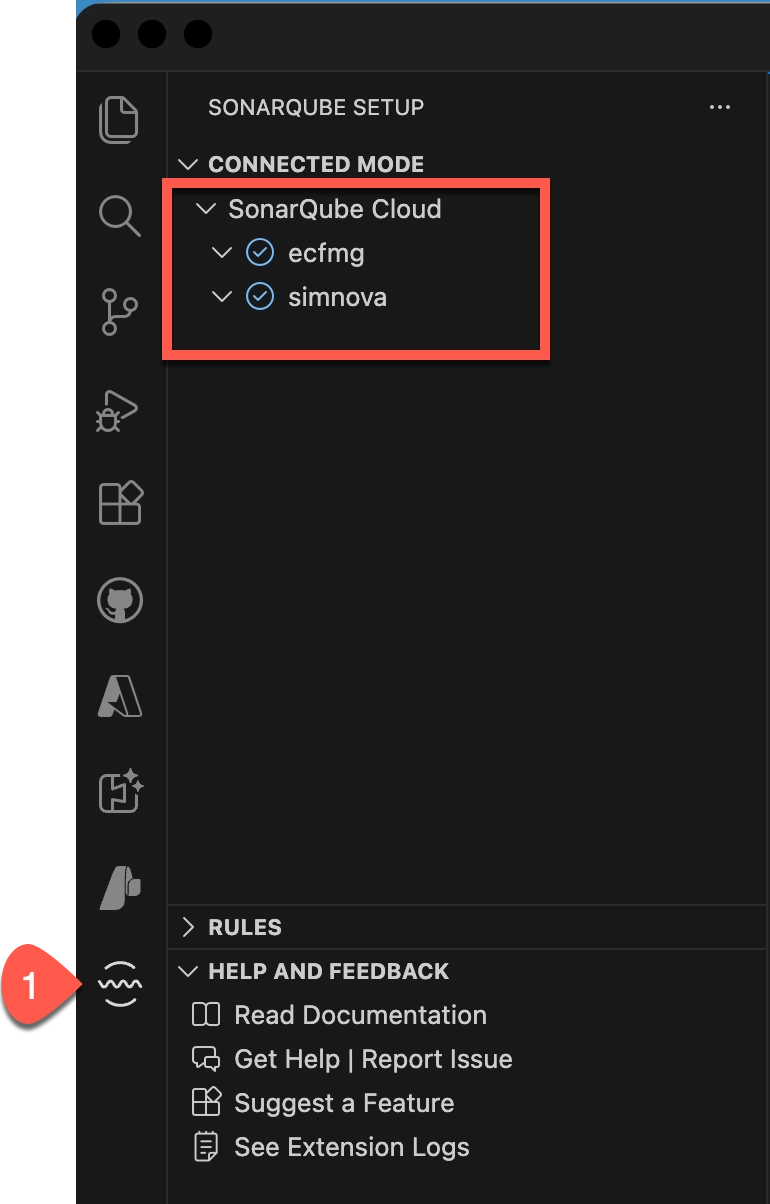
Confirm the configuration:
6.2 Arrange the sidebars
- Right-click the vertical activity bar and select Move Primary Side Bar Right.
- Right-click Sourcery in the activity bar, select Move to Secondary Side Bar, and log in with GitHub.
Step 7 · Maximize screen resolution
Go to System Settings → Displays → Advanced, enable Show resolutions as list, and pick the highest resolution you can read comfortably.
More code on screen at once means less scrolling and higher productivity.
Step 8 · Install the VPN
Only do this step if you're directed to.
-
Make sure OneDrive has finished syncing.
-
Copy the installer to your Desktop: Download AnyConnect VPN
-
Run the AnyConnect.pkg installer.
dangerDo not select any modules other than VPN.
-
Connect using IntealthOkta:
- Username:
<your username>@ecfmg.org - Password: your password
- Approve the Okta Verify push
- Username:
-
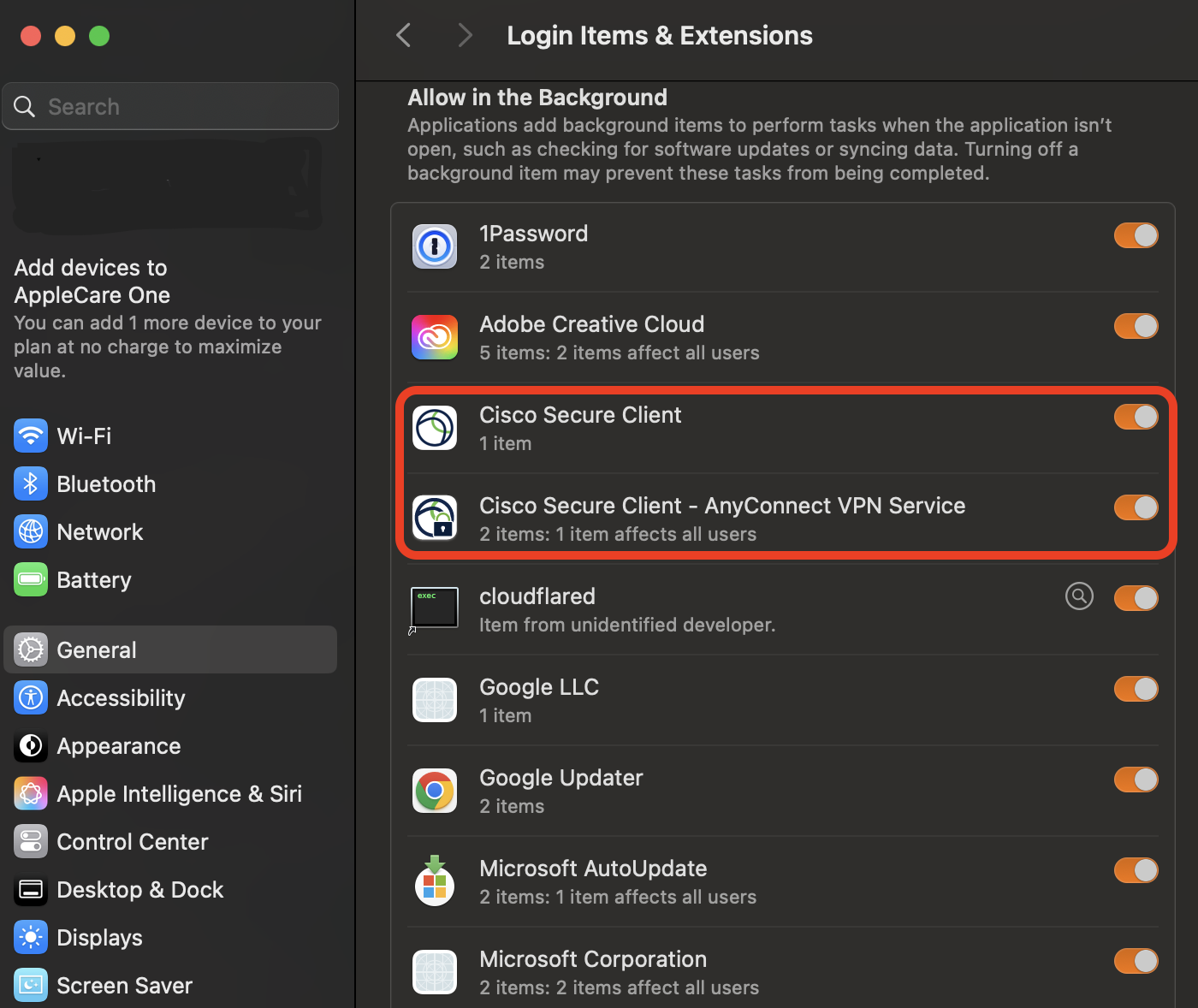
Enable the AnyConnect VPN Service under System Settings → General → Login Items:
Only connect to submit a timesheet or access the ticketing system. Close other network-heavy apps (e.g. Spotify) while connected, and disconnect as soon as you're done.
Troubleshooting: VPN install went sideways
sudo pkgutil --forget com.cisco.pkg.anyconnect.vpn
Then put the installer into a disk image — see here for how.
Step 9 · Rename your MacBook
Skip this step unless Intealth provided a brand-new MacBook Pro.
-
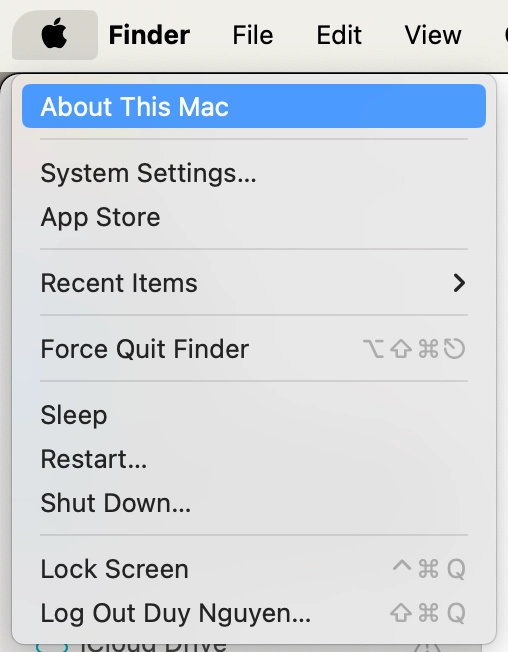
Open About This Mac:
-
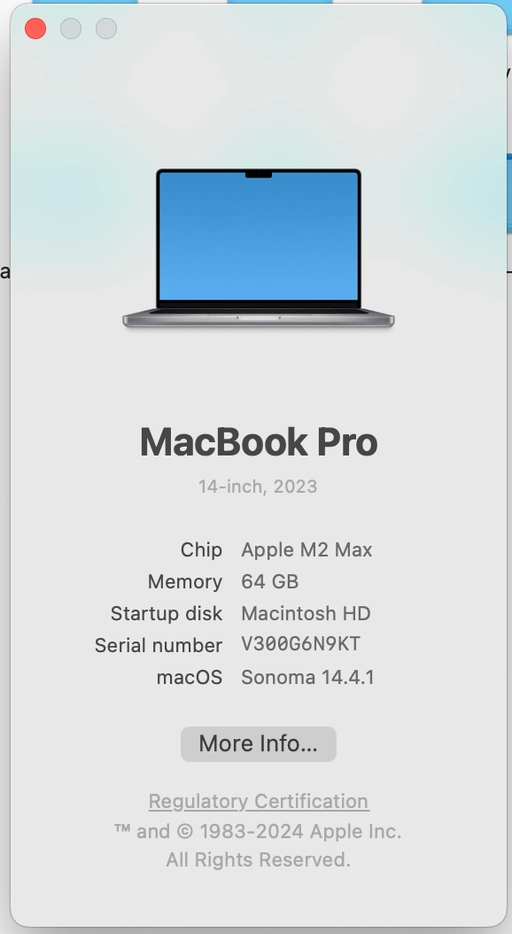
Click More Info:
-
Select the name and change it to
HQ-MAC-<serial number>: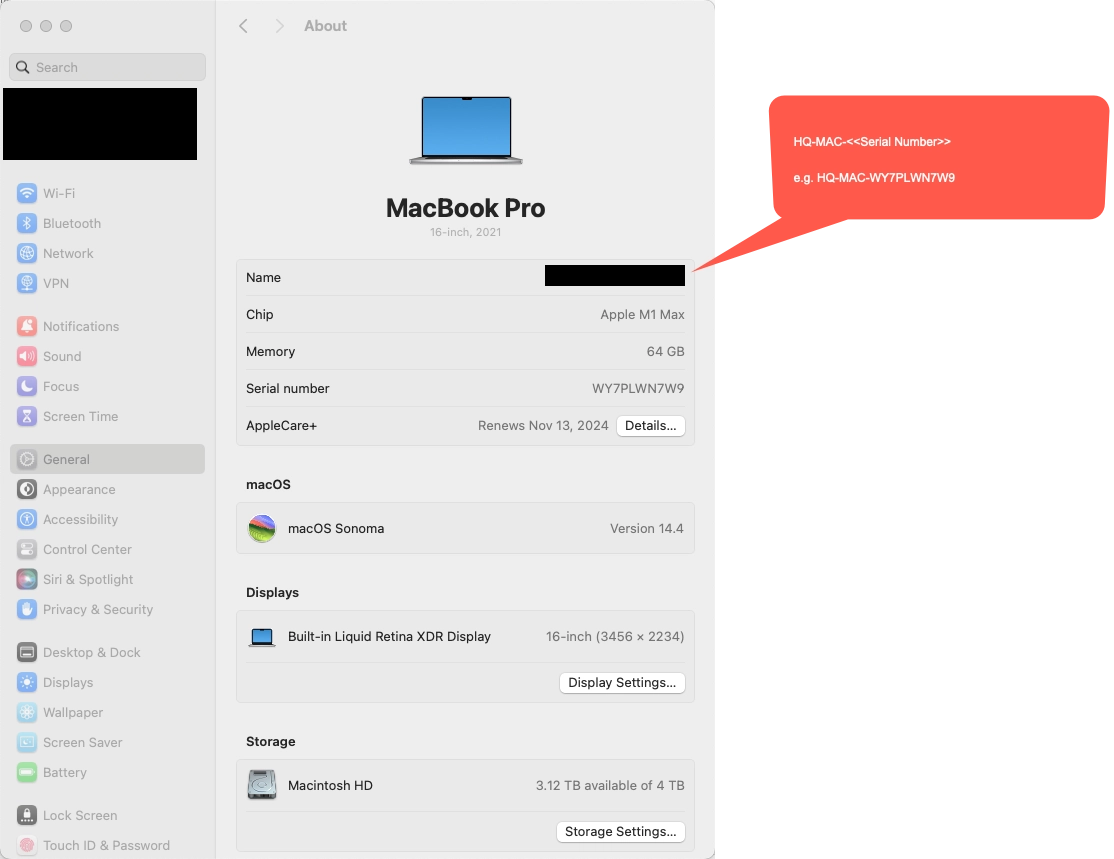
Step 10 · Enroll your Mac in Intune
Follow the Intune enrollment documentation.
Your MacBook is set up and ready for development.